Office equipment is one of the most important investments a business makes, yet it is…

Troubleshooting Copier Issues: Common Problems and Practical Solutions
Copiers are one of the most relied upon pieces of equipment in an office. At RDC, we know that the copier is the beating heart of any office. From contracts and invoices to reports and internal documents, they quietly support daily operations. That is, until something goes wrong. When a copier jams, prints poorly, or stops responding altogether, productivity can quickly grind to a halt.
The good news is that not every copier problem requires immediate service. Many common issues can be identified and resolved with a few relatively simple troubleshooting steps. This guide walks through the most frequent copier problems, what causes them, and what you can try before escalating the issue.
Why Copier Issues Happen So Often
Copiers handle high volumes of paper, toner, and mechanical movement. Over time, wear and tear is unavoidable, as with any machine. Environmental factors like humidity, dust, and improper paper storage can also contribute to problems. In many cases, copier issues are not sudden failures but small problems that build up gradually over long periods of time.
Understanding how and why these issues occur helps prevent them from becoming major disruptions. So let’s break each one down in a dedicated category to see how you can keep these small problems small.
Paper Jams: The Most Common Copier Problem
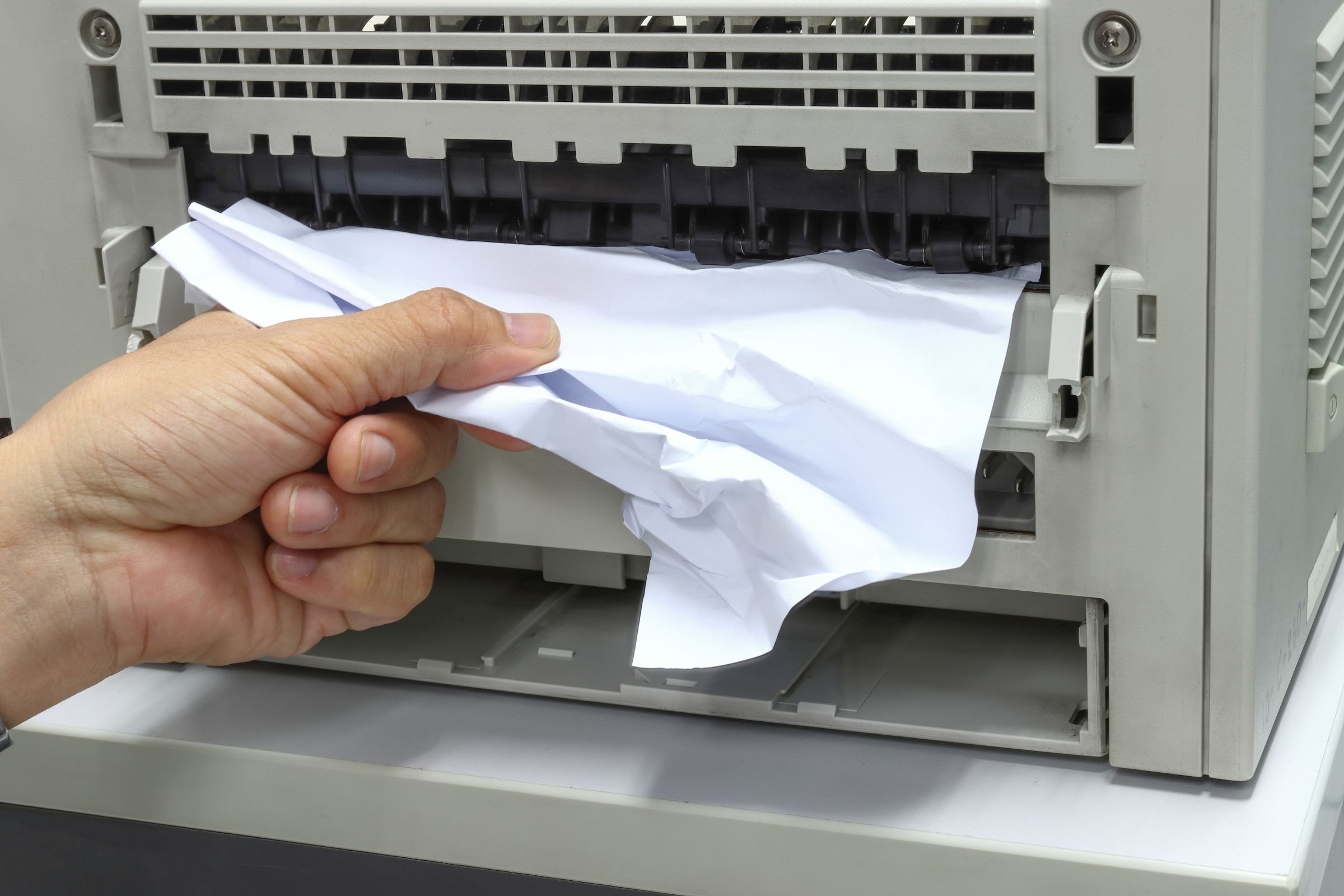
Paper jams are by far the most frequent copier complaint. Older copiers and printers may jam more frequently due to worn-out parts or improper maintenance. While frustrating, they are often easy to diagnose.
Common causes include:
- Overfilled or misaligned paper trays
- Low‑quality or damaged paper
- Paper stored in humid conditions
- Dirty or worn rollers
What you can do:
- Remove paper slowly and carefully, following the machine’s on‑screen instructions
- Check trays for correct paper size and alignment
- Fan the paper stack before loading it
- Store paper in a dry, flat location
If jams occur repeatedly in the same area, the issue may be mechanical rather than paper‑related, but more often than not you’ll locate the issue with one of the above DIY tactics.
Poor Print Quality: Streaks, Smudges, or Faded Prints
Print quality problems are another frequent issue that impacts professionalism and usability.
Typical symptoms include:
- Faded text or images
- Vertical lines or streaks
- Smudging or toner not fully adhering
Possible causes:
- Low or uneven toner levels
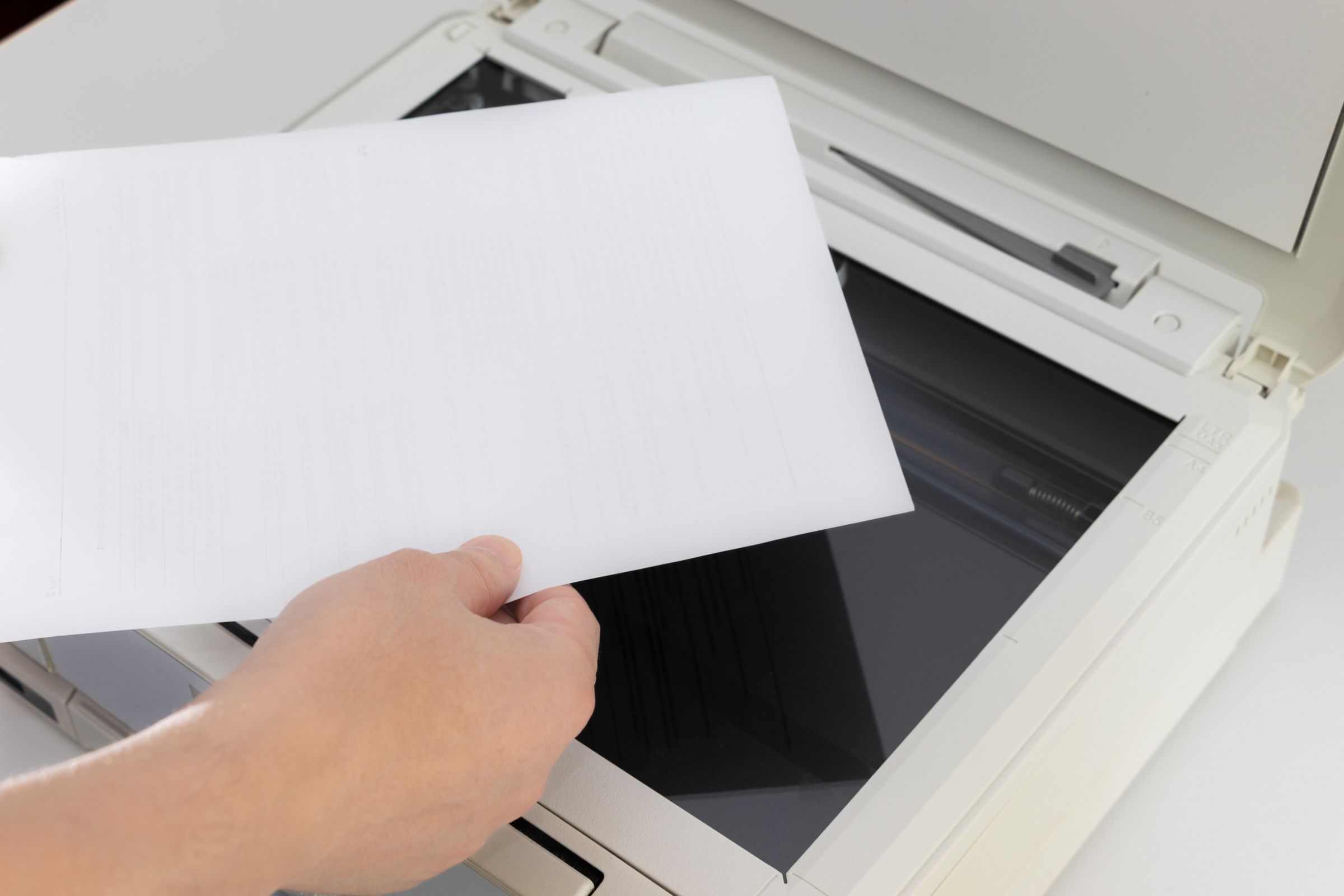
- Dirty scanner glass
- Worn imaging components
- Incorrect print settings
Troubleshooting steps:
- Replace or gently redistribute toner
- Clean the scanner glass and document feeder
- Check print settings for quality or draft mode
- Run a test print or cleaning cycle if available
If print quality does not improve after these steps, internal components may need attention.
Copier Not Connecting to the Network
Modern copiers rely heavily on network connectivity for printing, scanning, and document sharing. When a copier goes offline, it can disrupt multiple users at once.
Common reasons include:
- Network changes or password updates
- IP address conflicts
- Loose Ethernet cables
- Software or firmware issues
What to try:
- Restart the copier and the network router
- Check cables and wireless settings
- Confirm the copier is connected to the correct network
- Verify that the device appears online in your system
Network‑related issues often require IT support if basic steps do not resolve the problem.
Error Codes and Warning Messages
Copiers are designed to alert users when something is wrong, but error codes can feel intimidating.
Typical error triggers include:
- Paper jams not fully cleared
- Doors or trays not properly closed
- Low consumables or maintenance alerts
Best practices:
- Write down the exact error message or code
- Follow on‑screen prompts carefully
- Power cycle the machine after clearing the issue
Recurring error messages usually indicate a deeper mechanical or sensor issue that needs professional diagnosis. But, if you see one, don’t panic. Error codes luckily come with a set of instructions you can take, and these are usually model-specific. Follow the steps provided and hopefully find yourself with a resolved error afterwards.
Slow Performance or Frequent Freezing
If your copier seems sluggish or unresponsive, the issue may not be mechanical.
Potential causes:
- Overloaded memory
- Too many queued print jobs
- Outdated firmware
- Heavy scanning or printing demands
Steps to take:
- Clear print queues
- Restart the copier regularly
- Schedule firmware updates
- Avoid sending extremely large jobs during peak hours
Performance issues often signal that the copier is being used beyond its intended capacity. Let the copier breathe, and the whole office will take a sigh of relief.
Unusual Noises or Overheating
Grinding, squealing, or excessive heat should never be ignored. These symptoms often point to:
- Worn internal parts
- Misaligned rollers
- Blocked ventilation
If you notice unusual sounds or heat buildup, it’s best to stop using the machine and avoid further damage. This is a situation that we actually recommend the help of a professional, as tampering at this stage may lead to worse problems.
When Troubleshooting Is Not Enough
While basic troubleshooting can solve many problems, some situations require professional service.
You should seek expert help when:
- Issues repeat frequently
- Error codes persist after resets
- Mechanical noises are present
- Print quality continues to decline
- Downtime is impacting productivity
Ignoring these signs can lead to more expensive repairs or complete equipment failure.
Preventing Copier Problems Before They Start
The most effective troubleshooting strategy is prevention. Regular maintenance reduces breakdowns and extends the life of the machine.
Preventive steps include:
- Routine cleaning
- Scheduled maintenance checks
- Using manufacturer‑approved supplies for the copier
- Training staff on proper usage
A well‑maintained copier runs more efficiently and produces more consistent results.
FAQ
How do I troubleshoot a copier paper jam?
Start by opening the indicated panel and gently removing any jammed paper, being careful not to tear it. Check that the paper tray is aligned and loaded correctly, and only use clean, dry paper to prevent future jams.
Why is my copier printing faded or streaked pages?
Poor print quality is usually caused by low toner, dirty scanner glass, or worn imaging components. Try replacing toner, cleaning the glass, and running a maintenance cycle. If the issue persists, professional copier repair service may be needed.
Other questions? We may have answered them here.
Final Thoughts
Copier problems are inevitable, but they do not have to derail your workday. By understanding common issues and knowing what to check first, you can resolve many problems quickly and confidently. When troubleshooting reaches its limit, timely professional service ensures your equipment stays reliable and productive.
A copier that works consistently is not just a convenience. It is a critical part of keeping your business running smoothly. Frequent repairs may signal it’s time to consider copy machine sales for a newer, more efficient model.
Tried our methods and think you need a professional? Contact RDC Copiers to schedule your copier service now.
Related Posts